
Features
free-drawing gives any web page an infinite canvas to draw, organize and share ideas. Everything below works out of the box with new Drawer($el), and each part can be configured, translated or turned off: see the options.
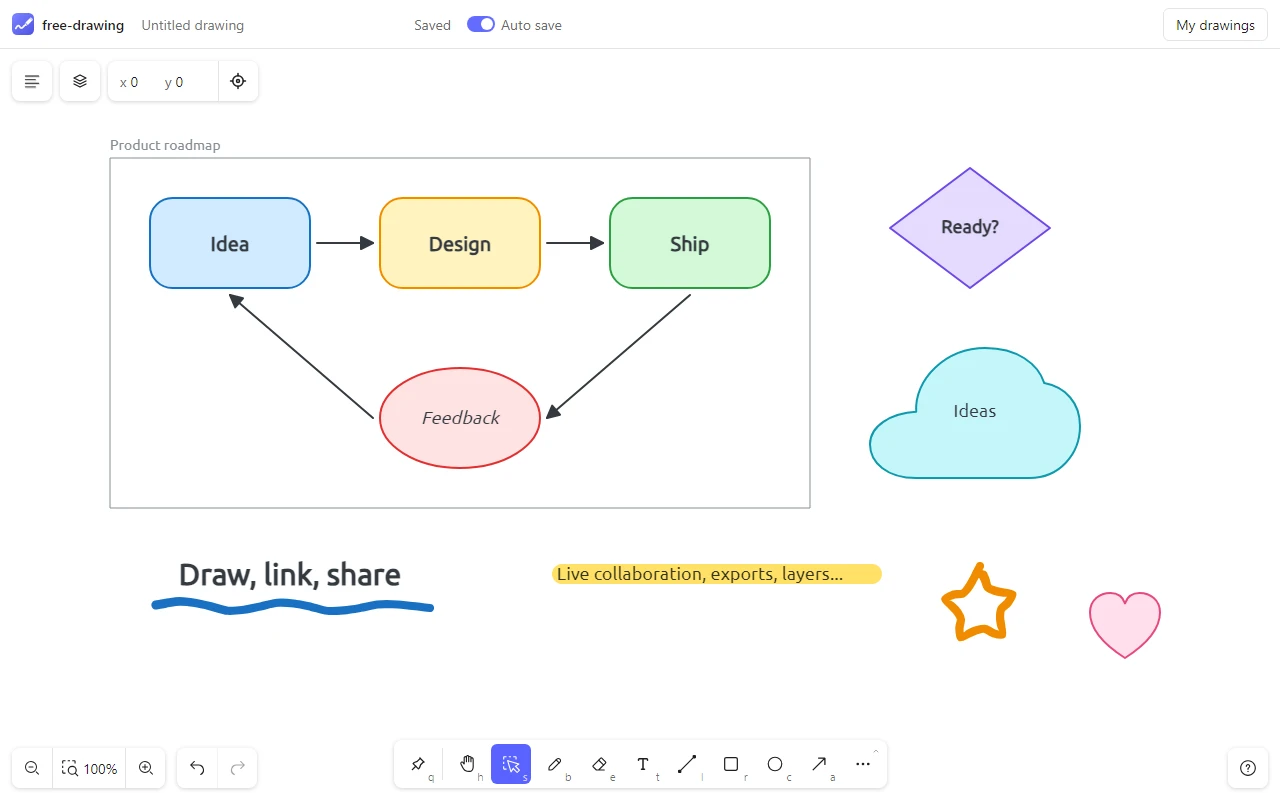
Drawing tools
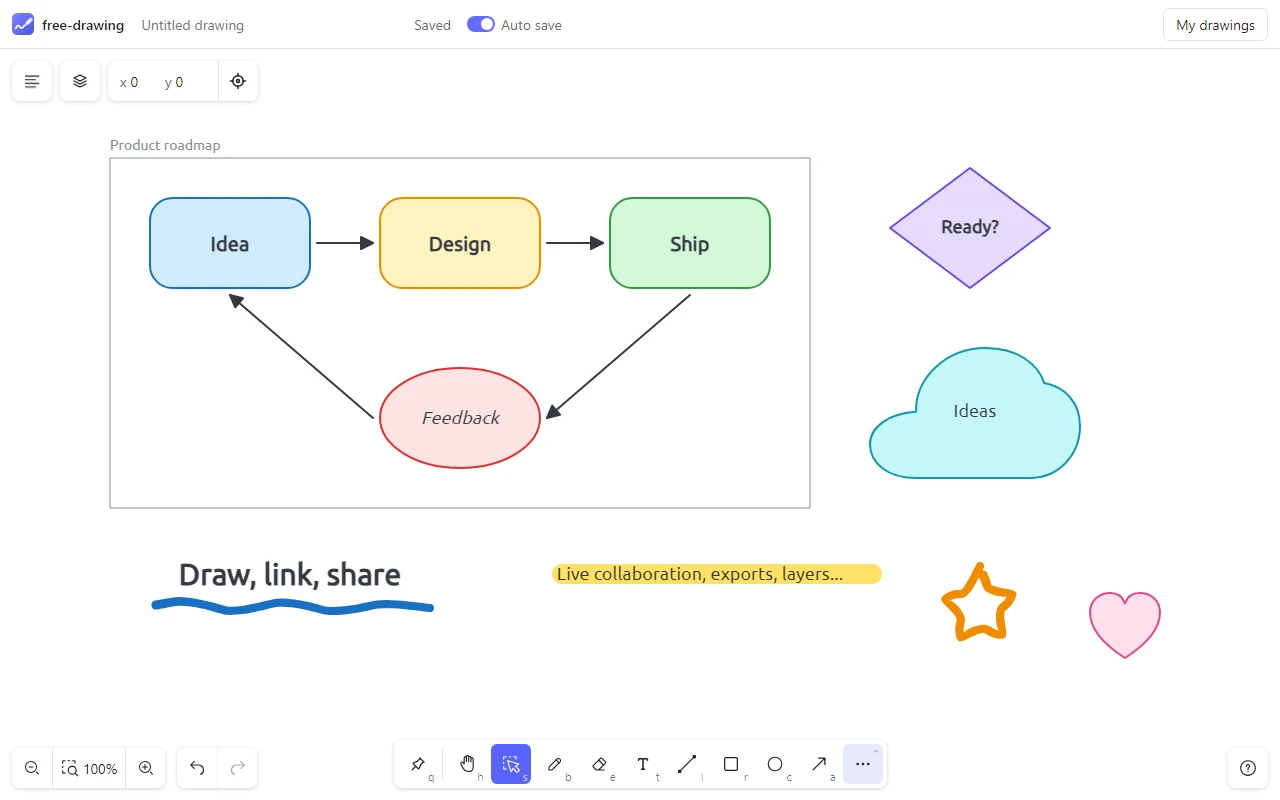
- Freehand: a brush with smooth strokes following the speed of the pointer (perfect-freehand), and a highlighter whose fluorescent colors are multiplied with the drawing below, so texts stay readable.
- Shapes: rectangles with sharp or round corners, ellipses, lines, arrows, triangles, diamonds, hearts and clouds, drawn in the dragged box. Shift draws squares, circles and lines at 45°.
- Texts: font, size, bold, italic, underline, alignment, and a width fitted to their content.
- Styles: stroke color and width, solid, dashed or dotted strokes, background color, corners, opacity, from the panel of the tool or of the selection.
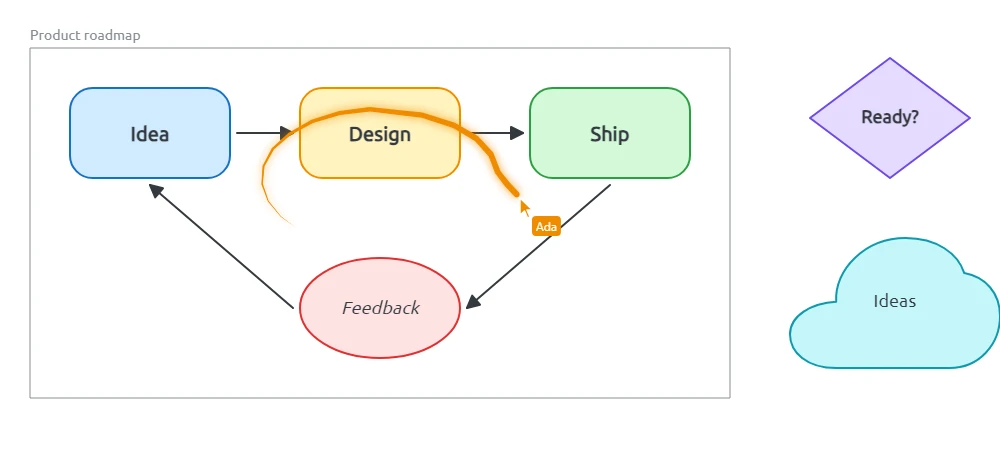
- Laser pointer to show something without drawing it, also seen by the other users of a session.
- Eraser: click a shape or drag through several ones, they fade until the pointer is released.
- Shortcuts: B brush, E eraser, T text, L line, R rectangle, C ellipse, A arrow, D diamond, M highlighter, K laser, F frame, H pan, S select. The pin of the toolbar keeps the tool after a drawing, else the selection comes back.
The toolbar, its groups and the shortcuts are set with the widgets and widgetGroups options.
Selection and editing
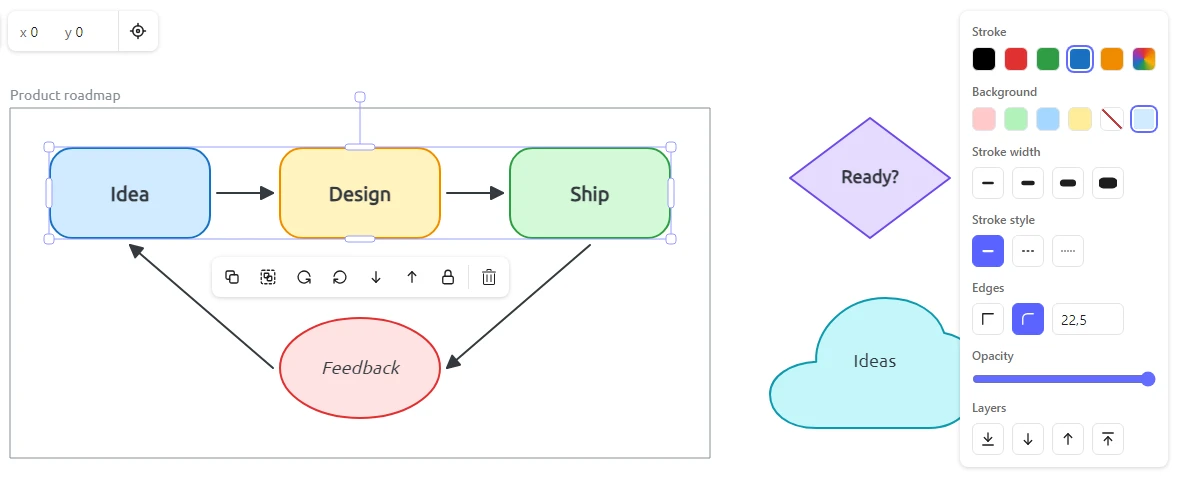
- Select a shape with a click, add one with Shift + click, reach the shapes behind with Alt + click, or drag a rectangle selecting every shape it touches.
- Move, resize and rotate: Shift keeps proportions, rotates by steps of 15° and moves along an axis. Shapes snap to other shapes and to the grid.
- Options of mixed selections: the panel shows the options of every kind of selected shape, and applies each one to the shapes it fits, with actions to duplicate, delete or link the selection.
- Selection menu next to the shapes: duplicate, group, rotate, stacking order, lock and delete.
- Links: attach a web page or an email address to a shape, edited above it, opened from its link icon.
- Edit faster: duplicate (Ctrl + D), group (Ctrl + G), flip (Shift + H / V), rotate by 90° (Shift + R / L), move with the arrow keys, undo and redo up to 100 steps.
More in Selection.
Layers, groups and frames
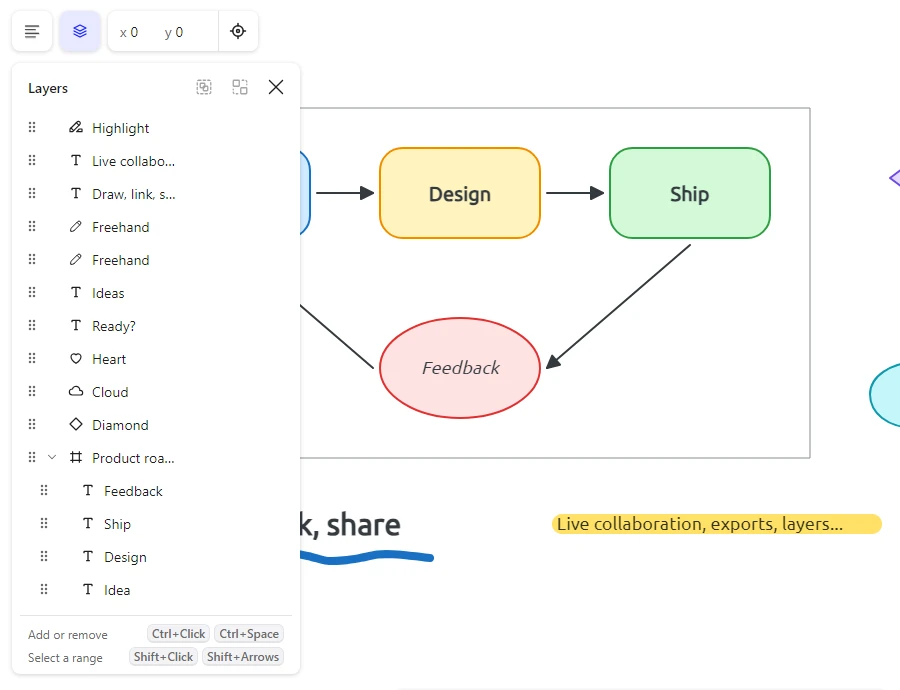
- Layers panel (Alt + L): every shape with its name, top first. Rename, hide, lock, drag to reorder, select ranges with Shift.
- Groups move and style their shapes together, which can still be reached alone with Ctrl + click.
- Frames: named areas holding the shapes drawn or moved into them, cut at their border, exported without their title. A frame a shape is moved into or out of is highlighted, the moved shape is drawn whole. A selected frame has its opacity, stacking order and actions.
- Linked arrows follow the shapes they link when these are moved or resized, fixed to a side or to the outline.
- Stacking order: forward and backward past the next overlapping shape, or to the front and back.
More in Layers, Linked arrows and Stacking order.
Menus, shortcuts and command palette
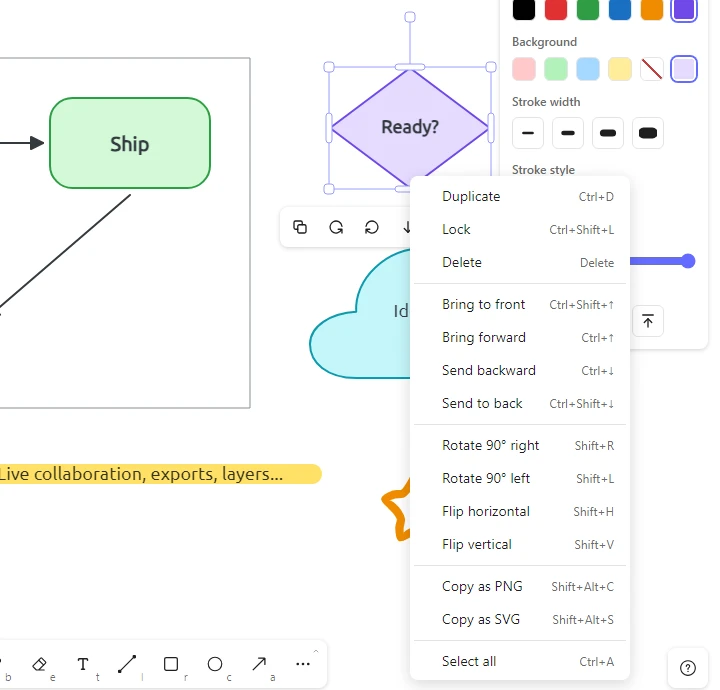
- Context menu: a right click shows the actions of the selection or of the drawing, each with its shortcut.
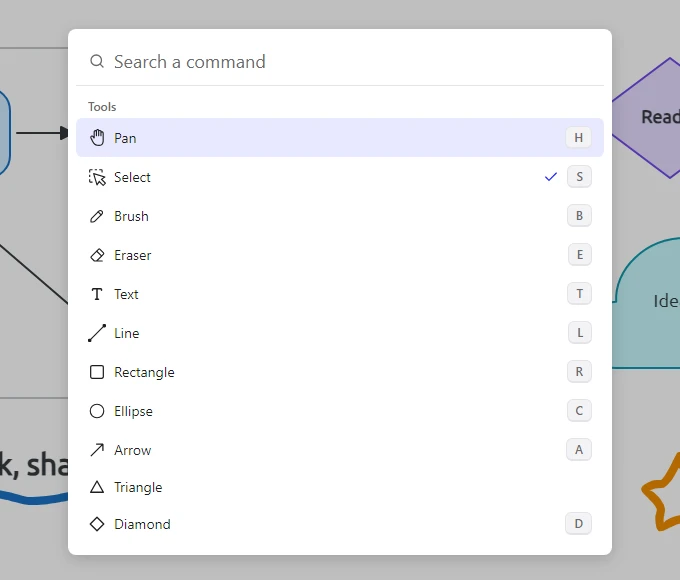
- Command palette (Ctrl / Cmd + K): search any tool or command by its name, in the current language.
- Help lists every shortcut, preferences (Ctrl + ,) keep the theme, language, grid, snapping, zen mode and auto save.
- Clipboard: paste a text (Ctrl + V), copy the selection as a PNG or SVG image.
Live collaboration
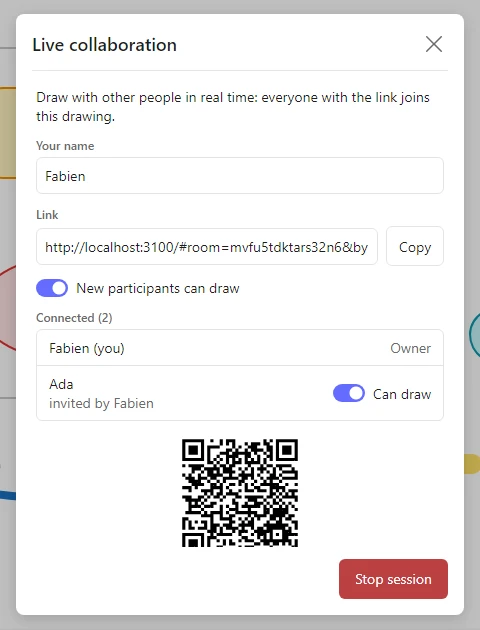
- Sessions: start one from the menu and share its link or QR code, everyone draws on the same drawing in real time.
- Presence: cursors of the other users with their names, shapes they are drawing, their laser.
- Rights: the owner gives or removes the right to draw, and chooses whether new participants can draw.
- Reliable: changes made while the connection is lost are merged with the ones of the others when it comes back.
- Server included: the repository has a Node server (socket.io, accounts, SQLite), or use your own following the protocol.
Files, links and export
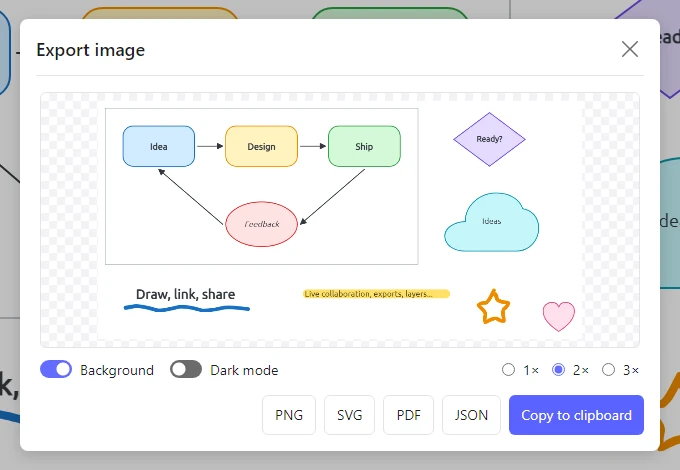
- Files: save and open
.freedrawingfiles (Ctrl + S, Ctrl + O). Only drawing shapes are read: files can come from anyone. - Links hold the whole drawing, compressed, so no server is needed to share it.
- Export the drawing or the selection as PNG (1×, 2× or 3×), SVG or PDF, with or without background, in dark mode or not, or copy it to the clipboard.
More in Files and links and Export.
Themes, languages and accessibility
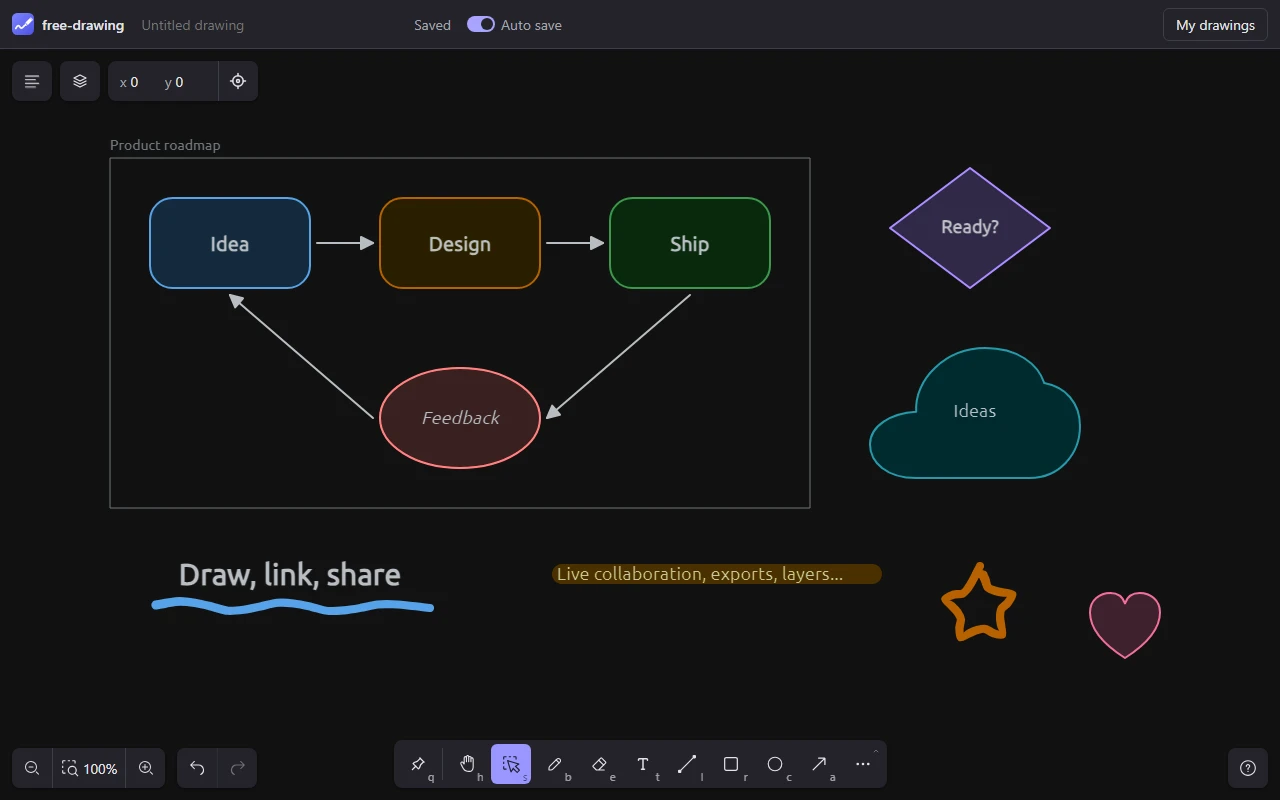
- Themes: light, dark or the one of the device. The dark mode keeps the colors of the shapes recognizable.
- Languages: English, French, Spanish and German, chosen from the browser, and any text can be replaced with the
translationsoption. - Keyboard and screen readers: every action has a shortcut, menus and panels are reached with Tab and arrow keys, buttons have names and states.
- Focus: the zen mode hides the interface, a grid can be shown with snapping.
More in Dark mode and Languages.
Made for apps
- One element:
new Drawer($el, options)and itsstyle.css, no framework, TypeScript types included, Konva as only peer dependency. - Your storage: the
storageoption loads and saves drawings in your app or server, the drawing is also a JSON file to keep anywhere. - Events follow the drawing, the selection, the preferences and the collaboration, preferences can follow user accounts.
- Control: read only mode, user of the collaboration, every widget optional.
- Plugins: add your tools, commands, shortcuts and items of the context menu with a
Pluginclass, which can require other plugins and be configured by each app.npm create @fabwcie/free-drawing-plugincreates one from a few questions, see the plugins guide.
The demo is the web app of the repository: drawings kept in the browser, and with its server, accounts, drawings saved on the server and live collaboration. More in Use in an app and the API.